How to Stick to Using Your Calendar (Even if You Hate Scheduling)
If you avoid your calendar because adding events is a chore, you're not alone. Learn how to make scheduling frictionless and finally stick to a planning routine.
March 4, 2025
3 min read
You know you should use a calendar to stay organized, but you don't. The reason isn't laziness—it's friction. Manually entering events is a tedious chore that discourages you from even starting. This guide shows you how to fix that.
The Problem: Too Much Friction
Adding events manually is tedious. A typical calendar interface presents a daunting array of dropdown menus, date pickers, and text fields. What should be a simple 10-second task balloons into minutes of data entry, creating friction that discourages use.
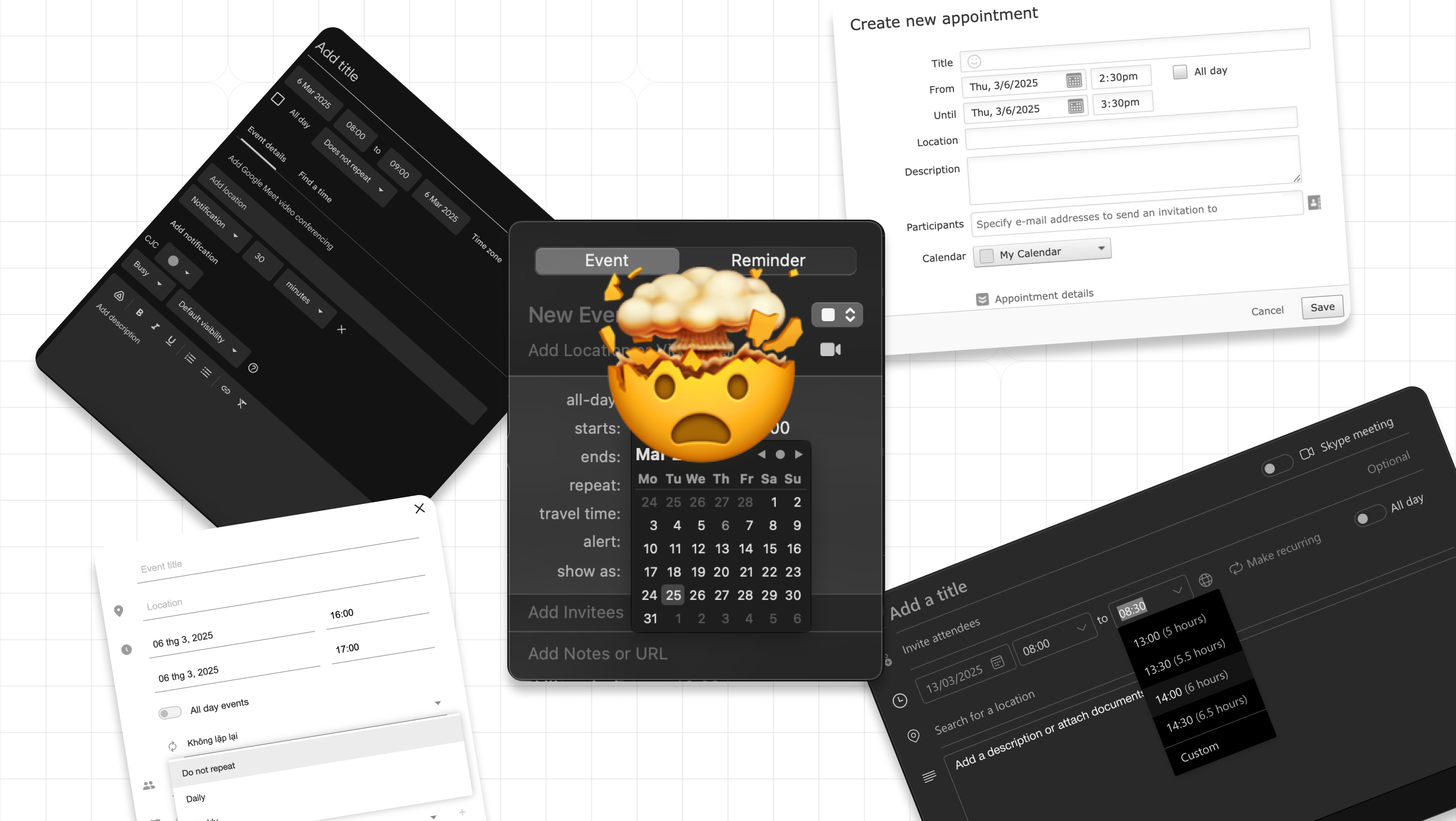
This is why so many people avoid updating their personal calendars. Important details end up scattered across emails, chats, and notes, making it easy to miss something.
Reducing Friction: Practical Approaches
The key to sticking with your calendar is making event entry as painless as possible. Here are several ways to do that:
Use Quick Add Features
Most calendar apps have quick add functionality that's faster than the full form:
- Google Calendar: Press "Q" to open quick add, then type "Dinner with Jake Friday 7pm"
- Apple Calendar: Use natural language in the title field—"Meeting tomorrow 2pm" works
- Outlook: The subject line supports natural language parsing
Try Natural Language Calendar Apps
Some apps are built around natural language from the ground up:
- Fantastical (Mac/iOS): Type "Coffee with Sarah next Tuesday at 10am at Blue Bottle" and it parses everything—time, location, attendees
- Calendars by Readdle: Similar natural language support on iOS
- Amie: Modern calendar with smart input
Voice Assistants
If typing feels like too much work, just say it:
- "Hey Siri, add dentist appointment Thursday at 3pm"
- "Okay Google, schedule team standup every weekday at 9am"
- "Alexa, add reminder for mom's birthday next Saturday"
Text-to-Calendar Tools
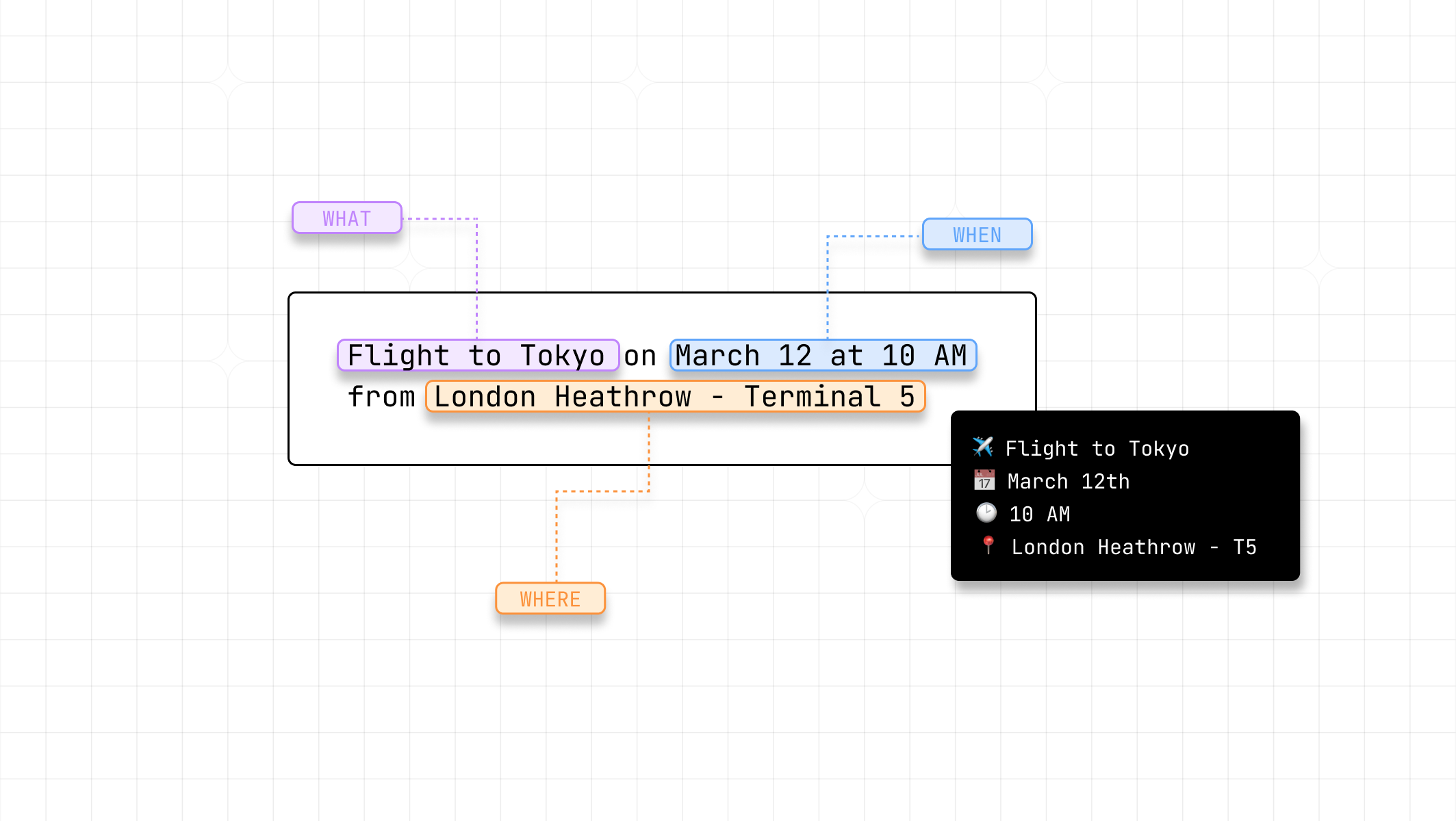
When you have event details in text form—from emails, messages, or notes—tools like Text-2-ICS, Fantastical's parsing, or even copying into a quick add field can save time. These convert plain text descriptions into structured events you can add to any calendar.
Building the Habit (No Tools Required)
Reducing friction helps, but the habit itself matters too:
-
Capture immediately: When someone mentions a date, add it right then. Don't tell yourself you'll remember.
-
Weekly review: Spend 5 minutes each Sunday reviewing the week ahead. This builds trust in your calendar as a reliable source of truth.
-
Start small: Don't try to calendar-block your entire life on day one. Start with appointments and deadlines. Add more structure gradually.
-
Pick one calendar: Multiple calendars create confusion. Consolidate everything into one view, even if the underlying sources differ.
-
Set a default duration: Most events are 30 or 60 minutes. Pick a default that works for you so you're not constantly adjusting.
The goal isn't a perfectly organized calendar—it's a system you actually use. Find the input method that feels effortless and stick with it.
For more on breaking bad scheduling patterns, see 5 time-wasting scheduling habits to break. And if you're still deciding which app to use, check out our Google Calendar vs Apple Calendar comparison.
Ditch Manual Entry
Describe your event in plain text and get a calendar event in seconds.
Try Text-2-ICS →